How to Search YouTube Transcripts: Complete Step-by-Step Guide
Introduction: Why YouTube Transcripts Are a Game-Changer
You know that feeling when you’re watching a long YouTube video and someone mentions a crucial point and you have no idea when it happened?
You scroll, rewind, scrub forward, 10 minutes wasted. It’s annoying, right?
Here’s the good news: YouTube transcripts exist, and they can save you from this exact frustration.
Whether you’re a student, a creator, a marketer, or just someone who loves learning from videos, being able to search transcripts makes your YouTube experience faster, smarter, and more productive.
By the end of this guide, you’ll know:
- How to find transcripts on desktop and mobile
- How to search for keywords quickly
- How to use transcripts to take notes, skip unimportant parts, and save hours
- Tips to make transcripts work for both learning and content creation
No more endless scrolling. No more wasted time. Just results.
1. What Are YouTube Transcripts and Why They Matter
Think of YouTube transcripts like a written version of everything someone says in a video. YouTube can create these automatically with AI, or the video creator can upload their own.
Why should you care? Here’s why transcripts are super handy:
- Find things fast: Jump straight to the part of the video where your keyword shows up.
- Save time: No need to watch the whole video if you only want one part.
- Understand better: Reading along while watching helps you remember more.
- Accessibility: Great for people who prefer reading or have trouble hearing.
- Create content: Grab quotes, references, or ideas for your own videos or projects.
Basically, transcripts are your YouTube cheat sheet. They help you find exactly what you need in seconds instead of minutes or even hours.
2. How to Access YouTube Transcripts on Desktop
Getting a transcript on your computer is easy. Here’s how:
- Open the YouTube video you want.
- Click the three dots below the video (near the Save button).
- Choose “Show transcript.”
- The transcript will appear in a panel on the right side.
Pro Tips:
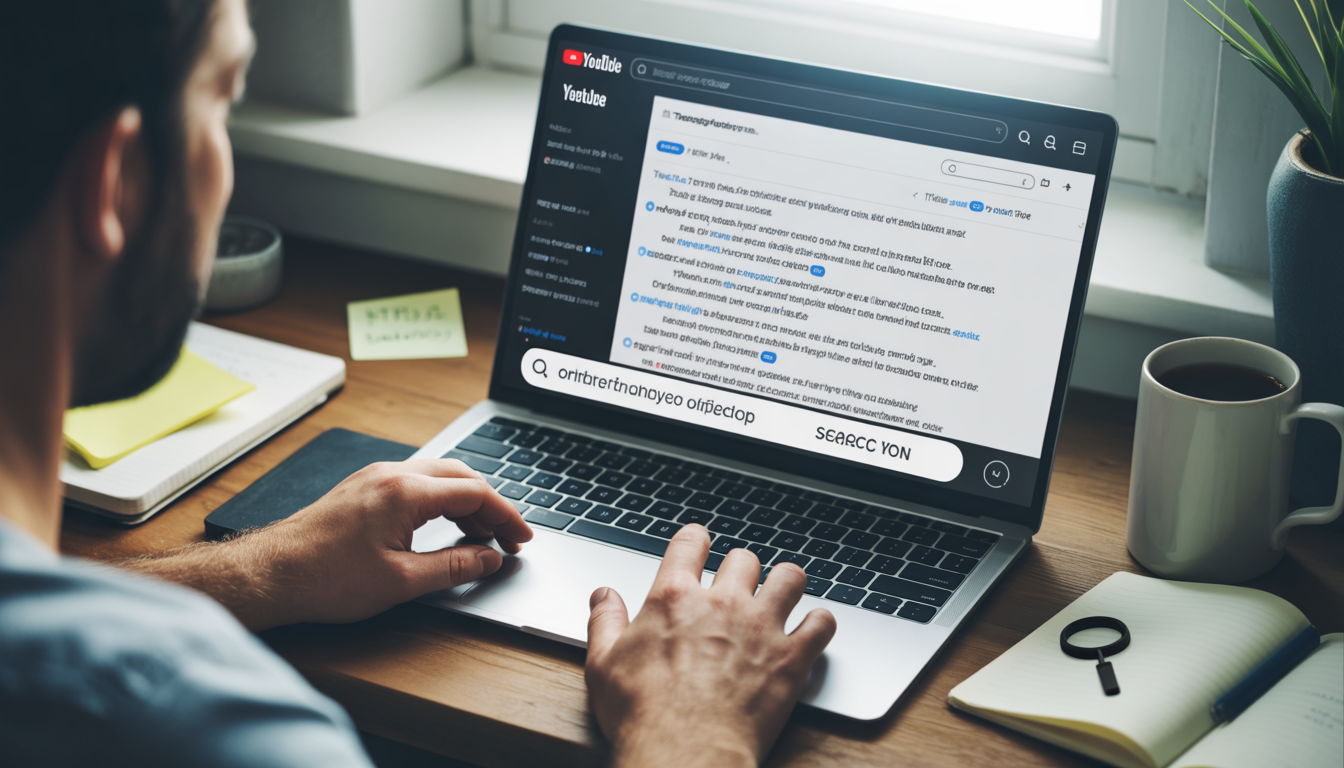
- Press Ctrl + F (or Cmd + F on Mac) to search for any word or phrase.
- Click on any line in the transcript to jump straight to that exact spot in the video.
- You can also turn off timestamps if you just want plain text.
Example: Let’s say you’re watching a video on “SEO for beginners” and want to see the part about keyword research. Press Ctrl + F, type “keyword research,” and boom, you’re right there.
3. How to Search YouTube Transcripts on Mobile
The YouTube app doesn’t show transcripts directly, but don’t worry, you’ve got options.
Method 1: Use a Mobile Browser
- Open YouTube in Chrome or Safari on your phone.
- Tap the three dots in your browser and choose “Desktop site.”
- Follow the desktop steps above to see and search the transcript.
Method 2: Use Third-Party Tools
- YouTube Transcript websites: Paste the video link and view the transcript online.
- Downsub: Download the transcript as a text file to read easily.
Why this matters: Even on your phone, you can find keywords, copy important parts, and save tons of time, just like on a computer.
4. Top Tricks to Use YouTube Transcripts Like a Pro
Transcripts aren’t just text, they’re a tool to help you watch smarter and learn faster.
a) Skip the boring parts
- Scan the transcript for the words you care about.
- Jump straight to those sections without wasting time.
b) Take notes easily
- Copy any line from the transcript.
- Paste it into your notebook, Google Doc, or wherever you’re keeping notes.
c) Track timestamps
- Each line usually has a time marker.
- Perfect for referencing important moments later, especially for school assignments or tutorials.
d) Summarize long videos
- Reading the transcript lets you understand the video without watching every second.
- Great for lectures, webinars, or super long tutorials.
5. Why Creators Should Care About Transcripts
If you make videos, transcripts can help you too. Here’s why:
- Better SEO: Captions make your videos easier to find.
- Repurpose content: Grab quotes or key points for blogs, social media, or scripts.
- Engagement: Viewers can follow along even if they have the sound off.
- Accessibility: Reach more people, including those who read subtitles.
Uploading a transcript yourself is always better than using YouTube’s auto-generated one. It’s more accurate, professional, and polished.
6. Common Problems and How to Fix Them
Sometimes transcripts don’t show up or don’t work properly. Here’s why and how to fix it:
Problem 1: No transcript available
- Only videos with captions (auto-generated or uploaded) have transcripts.
- “Made for Kids” videos might block transcripts entirely.
Problem 2: Transcript not loading
- Refresh the page.
- Make sure your app or browser is up to date.
- Clear cache if needed.
Problem 3: Auto-generated errors
- YouTube’s AI can mishear some words.
- Always double-check key parts manually.
If the transcript is messy, download it and tidy it up. It’s worth the effort for research or creating your own content.
7. Advanced Tips for Searching Transcripts
Once you get the hang of basic transcript searching, these tricks make you even faster and smarter:
a) Boolean search
- Put quotes around phrases: “keyword research”
- This finds the exact match instead of any word that’s close.
b) Combine with notes
- Copy timestamps and lines into Google Docs, Notion, or your favorite note app.
- Organize your learning or content ideas efficiently.
c) Search multiple videos at once
- Use Downsub or similar tools to download several transcripts.
- Search across all of them in a text editor for research.
d) Language and subtitles
- Many videos offer multiple subtitle languages.
- Pick the one you understand best to make learning easier.
PAS Framework: How Transcripts Make Life Easier
Problem:
You’re watching a long YouTube video, and there’s that one important piece of information you need but you can’t remember where it was. So you start scrolling, rewinding, scrubbing back and forth and suddenly, 10, 20, maybe 30 minutes have gone by. Frustrating, right?
Agitation:
Your focus fades. You get annoyed. Time slips away. And all that scrolling? Totally unproductive. You just want the info, not a workout for your thumbs.
Solution:
This is where YouTube transcripts come to the rescue. With a transcript, you can search for any keyword, jump to the exact part of the video, and even take notes while reading.
Imagine this: You open the transcript, type in the word you’re looking for, and click one line, boom! You’re right at the spot you need. No more endless scrolling. No more wasted time. Just fast, easy access to exactly what you wanted.
Quick Comparison: Watching vs Using Transcripts
| Feature | Watching Video ❌ | Using Transcript ✅ |
| Time Efficiency | Low | High |
| Keyword Search | Impossible | Instant |
| Note-Taking | Hard | Easy |
| Skipping Unimportant Parts | Frustrating | Simple |
| Accessibility | Limited | Full |
Frequently Asked Questions (FAQs)
1. Are transcripts available for all YouTube videos?
Not every video has a transcript. Only videos that have captions either auto-generated by YouTube or uploaded by the creator will show one.2. Can I search transcripts on my phone?
Yes! Even on mobile, you can search transcripts by opening YouTube in a browser, switching to desktop mode, or using a third-party tool.3. How can I download a transcript?
There are websites like Downsub that let you copy or download a transcript as a text file. Super handy if you want to read offline or take notes.4. Do transcripts show timestamps?
Yep! Each line usually has a timestamp. That means you can click it and jump straight to that part of the video.5. Are auto-generated transcripts accurate?
Most of the time, yes but they’re not perfect. Accents, background noise, or unclear speech can sometimes make mistakes.6. Can I use transcripts to take notes?
Absolutely! Just highlight the parts you need and copy them into your notes. It’s way faster than rewinding the video.7. Do transcripts help YouTube creators with SEO?
Yes. Captions and transcripts make videos easier to find in search, and they help more people understand your content.8. Can transcripts be used for live videos?
Only after the live video is over and has captions. During the live stream, you usually won’t see a transcript.9. Can I search for more than one keyword at a time?
Yes! If you download the transcript, you can search for multiple keywords using a text editor. Very useful for research or study.10. Do transcripts work for long videos?
Definitely. For long tutorials, lectures, or webinars, transcripts are a lifesaver. You can skip straight to the parts you care about.11. Can transcripts help me summarize videos?
Yes! You can skim through the text, pick out the important parts, and get a summary without watching the whole video.Conclusion: Search Smarter, Not Harder
Here’s the deal, you don’t have to spend forever scrolling back and forth through YouTube videos.
Transcripts make things way easier. With them, you can:
- Find keywords instantly, no guessing, no rewinding
- Jump straight to the important parts, skip the boring stuff
- Take notes and summarize efficiently, get the info you need fast
So, what’s next?
- Open a YouTube video
- Turn on the transcript
- Type in your keywords and go
Once you start using transcripts, you’ll notice something awesome: you save a ton of time, learn stuff faster, and even get ideas for your own videos or projects. It’s simple, it works, and it makes YouTube actually work for you, not the other way around.