YouTube Keyboard Shortcuts: The Simple Guide to Edit Faster and Work Smarter
Introduction
Ever felt like editing a YouTube video takes forever?
You sit down with motivation, open your editing timeline, and suddenly you’re stuck doing small, repetitive tasks, dragging the mouse, clicking through menus, searching for basic tools, and replaying clips again and again. Before you even realize it, hours have passed and you still feel like you’ve barely made progress.
Most beginners don’t know, “YouTube keyboard shortcuts can cut your editing time in half and sometimes even more”.
Instead of relying only on your mouse, shortcuts let you control your editing software instantly with a few key presses. That means faster cuts, smoother playback, quicker adjustments, and way less frustration during long editing sessions. Whether you’re a beginner YouTuber just uploading your first videos or a growing creator trying to improve your workflow, learning a few simple shortcuts can completely change how you work. You’ll feel more in control, stay in your creative flow longer, and finish edits much faster than before.
In this guide, you’ll learn the most useful YouTube keyboard shortcuts and how they can help you work smarter, not harder.
Why YouTube Keyboard Shortcuts Matter
Small creators often waste a lot of time doing everything with the mouse but professionals don’t work like that. They use shortcuts to:
- Edit faster
- Save time
- Stay focused
- Increase productivity
Instead of clicking 10 times, a shortcut does it in 1 second. That’s the real power of shortcuts.
Most Useful YouTube Keyboard Shortcuts
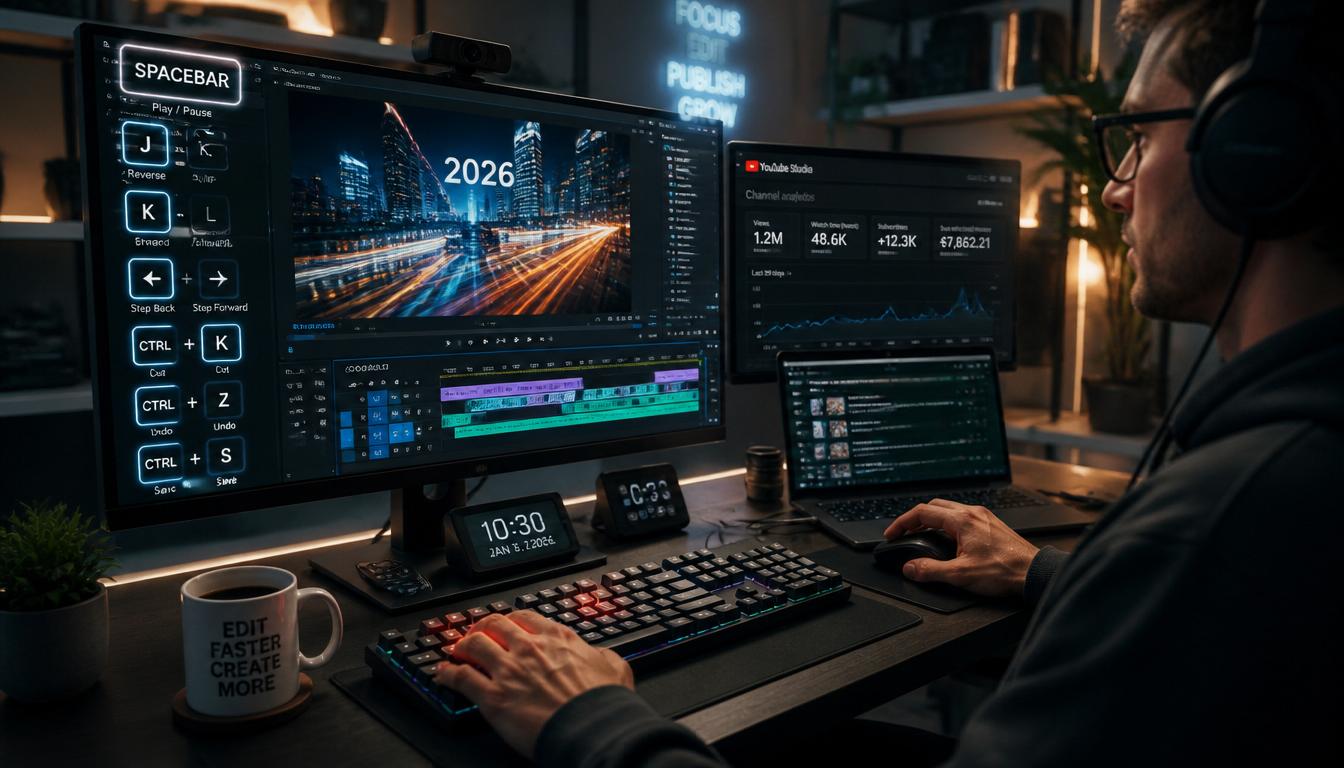
Here are the most important ones every creator should know:
Basic Playback Controls
- K → Pause/Play video
- J → Rewind 10 seconds
- L → Fast forward 10 seconds
- M → Mute/unmute
Navigation Shortcuts
- 0 → Restart video
- 1–9 → Jump to 10%–90% of video
- Home → Go to start
- End → Go to end
Speed Control
- Shift + > → Increase speed
- Shift + < → Decrease speed
PAS Framework: Why Shortcuts Save Your Time
Problem
Editing videos manually can take a lot of time and effort. Every small action cutting clips, moving between timelines, or finding tools requires repeated mouse clicks. This slows down your entire workflow and makes editing feel longer and more complicated than it should be.
Agitation
When you spend hours doing small, repetitive tasks, it doesn’t just waste time, it also drains your energy. You start feeling tired, frustrated, and less motivated to continue uploading regularly. Over time, this slow process can even stop your consistency, which is one of the most important factors for growing on YouTube.
Solution
Keyboard shortcuts solve this problem by making everything faster and smoother. Instead of clicking through menus, you can perform actions instantly with a simple key press. This helps you stay focused, maintain your creative flow, and complete edits in much less time.
In short, less effort, more output and more time to focus on creating better content instead of struggling with tools.
Comparison Table: Mouse vs Keyboard Shortcuts
| Task | Using Mouse | Using Shortcuts |
| Pause video | Click button | Press K |
| Skip forward | Drag timeline | Press L |
| Go back | Drag again | Press J |
| Mute sound | Click speaker icon | Press M |
| Productivity | Slow | Fast ⚡ |
How Keyboard Shortcuts Improve Your YouTube Workflow
Using shortcuts doesn’t just save time, it changes how you work.
You start:
- Editing faster
- Thinking more creatively
- Making fewer mistakes
- Uploading more often
And over time, this consistency helps your channel grow.
FAQ: YouTube Keyboard Shortcuts
1. What are YouTube keyboard shortcuts?
YouTube keyboard shortcuts are simple key combinations that let you control video playback without using your mouse. Instead of clicking buttons like play, pause, or rewind, you can do everything instantly from your keyboard, making the experience much faster and smoother.2. Do keyboard shortcuts really save time?
Yes, they save a lot of time, especially if you watch or edit videos regularly. Even small actions like pausing, skipping, or going back become instant, which helps you stay focused and reduces unnecessary clicking during editing or viewing.3. Are YouTube shortcuts hard to learn?
No, most YouTube shortcuts are very simple and beginner-friendly. You don’t need technical skills or training, just a few uses and they become natural to remember while working or watching videos.4. Can beginners use YouTube shortcuts?
Absolutely. YouTube shortcuts are designed for everyone, including beginners. In fact, new creators benefit the most because shortcuts help them work faster from the start and build good editing habits early.5. What is the most useful YouTube shortcut?
Some of the most commonly used shortcuts are K (pause/play), J (rewind 10 seconds), and L (forward 10 seconds). These three alone can significantly improve your editing and viewing speed.6. Do shortcuts work on mobile?
No, most YouTube keyboard shortcuts only work on desktop or laptop devices. If you are using a mobile phone or tablet, you will need to use touch controls instead.7. Why should creators learn shortcuts?
Creators should learn shortcuts because they help save time, improve workflow, and increase consistency. When editing becomes faster, it’s easier to upload videos regularly and grow your channel more effectively.8. Do shortcuts improve video quality?
Not directly. Shortcuts don’t change your video quality, but they give you more time and mental focus to work on creativity, editing details, and storytelling, which indirectly improves the final result.9. Can I customize YouTube shortcuts?
No, YouTube does not currently allow users to customize default keyboard shortcuts. However, the built-in shortcuts are already designed to cover most common actions efficiently.10. Are shortcuts useful for watching videos too?
Yes, they are very useful for watching videos as well. They make navigation faster, help you skip unnecessary parts, and give you better control over playback without touching the mouse.Conclusion
Learning YouTube keyboard shortcuts is one of the easiest ways to become a more efficient creator. You don’t need expensive tools or advanced skills, just a few keys can make a big difference in your workflow. They help you save time, speed up editing, and reduce stress while working on videos. Over time, even small shortcuts can significantly improve your productivity.