Introduction
Ever watched a video that looked amazing, clear visuals, nice editing, smooth transitions but something still felt missing? You guessed it right, it was the voice.
A video without a proper voiceover often feels incomplete. Even if the visuals are perfect, the message doesn’t fully connect. The viewer may get confused, lose interest, or simply stop watching.
That’s because voiceover is what gives meaning to your video. It explains what’s happening, guides the viewer step by step, and helps turn simple visuals into a clear story or lesson. Most beginners think adding a voiceover is complicated. They imagine expensive microphones, sound studios, or professional equipment.
But in reality, it’s much simpler than that.
You don’t need a studio.
You don’t need advanced editing skills.
And you definitely don’t need a big budget.
All you need is a basic script, a simple recording method, and a clear workflow.
Once you understand the process, you can easily add voiceovers to any type of video, whether it’s an educational lesson, a YouTube video, or a social media clip.
In this guide, you’ll learn how to add voiceover to video step by step, in a way that is simple, beginner-friendly, and easy to follow—even if you’ve never done it before.
A voiceover is a recorded voice that is added on top of a video to explain, guide, or narrate what the viewer is seeing. Instead of relying only on visuals or text, the voice helps tell the story in a clear and structured way. You’ll often hear voiceovers in tutorials, e-learning videos, documentaries, YouTube explainers, and even advertisements. The main purpose is simple, to make the video easier to understand and more engaging.
A good voiceover doesn’t just speak, it connects. It helps the viewer follow along step by step, especially when the topic is complex or new.
Why voiceover is important:
Adding a voiceover to a video may seem technical at first, but once you break it into simple steps, it becomes a very smooth and manageable process. The key is to follow each stage carefully so your final video sounds natural, clear, and professional.
Everything begins with your script. Never start recording without planning what you’re going to say. A well-written script helps you stay organized and confident.
Keep it simple and natural:
If your script sounds good when read out loud, your voiceover will also sound natural and engaging.
Now decide how you want to create your voiceover. You have two main options:
Human Voiceover:
AI Voiceover:
Your choice depends on your time, budget, and content style.
This is where your script becomes audio.
If using a human voice:
If using AI tools:
Always listen to the full audio once before moving to the next step. Small issues are easier to fix early.
Now it’s time to combine everything. Use any video editing software such as:
Then:
This is where your video starts to come alive.
This step is extremely important for quality.
Make sure:
Even small timing adjustments can significantly improve the viewer experience and make your video feel professional.
Now refine your voiceover to make it clean and polished.
You can:
A clean audio track makes your video easier to watch and more enjoyable.
Before you publish, always do a final check.
Never skip the review stage. It helps you catch small mistakes that can affect overall quality.
Most beginners struggle with voiceovers because they don’t follow a proper process. As a result, the final audio often sounds unclear, rushed, or poorly matched with the video. Sometimes the voice is too fast, too slow, or simply doesn’t fit the visuals at all.
Even if the video content is good, bad voiceover quality can instantly reduce its impact.
Now imagine being the viewer. You open a video expecting to learn something, but the voice is hard to follow. It feels unnatural or out of sync with what’s happening on screen.
What happens next?
This doesn’t just hurt engagement, it also damages trust. Viewers may think the content is low quality, even if the information is actually very valuable. Over time, this leads to fewer views, lower retention, and weaker audience growth.
The good news is that fixing this is simple if you follow the right process from the start.
You just need a clear and structured approach:
Creating a good voiceover is not just about speaking into a microphone, it’s about delivering your message in a way that feels clear, natural, and easy to follow. Small improvements in how you speak and prepare can make a big difference in the final result.
Here are some simple but powerful best practices you should always follow:
There are many good options depending on your needs. Popular choices include:
Each tool serves a different purpose, so choose based on your skill level and project type.
Clarity is always more important than perfection.
Adding voiceover to a video is one of the simplest yet most powerful ways to improve your content. It instantly makes your videos more clear, engaging, and professional, even if you are just starting out as a creator. A good voiceover helps you explain your message better, keeps your audience focused, and builds a stronger connection with viewers. Instead of just watching visuals, people actually understand and feel your content.
The best part is, you don’t need expensive equipment or advanced editing skills to get started. With a basic script, simple tools, and a little practice, anyone can create high-quality voiceovers. At first, it may feel a bit new or challenging, but it gets easier every time you try. The more you practice, the more natural and confident your voiceover will sound.
Start with your first video today. Record a short voiceover, add it to your video, and experience the difference yourself.
Ever watched a video that looked amazing, clear visuals, nice editing, smooth transitions but something still felt missing? You guessed it right, it was the voice.
A video without a proper voiceover often feels incomplete. Even if the visuals are perfect, the message doesn’t fully connect. The viewer may get confused, lose interest, or simply stop watching.
That’s because voiceover is what gives meaning to your video. It explains what’s happening, guides the viewer step by step, and helps turn simple visuals into a clear story or lesson. Most beginners think adding a voiceover is complicated. They imagine expensive microphones, sound studios, or professional equipment.
But in reality, it’s much simpler than that.
You don’t need a studio.
You don’t need advanced editing skills.
And you definitely don’t need a big budget.
All you need is a basic script, a simple recording method, and a clear workflow.
Once you understand the process, you can easily add voiceovers to any type of video, whether it’s an educational lesson, a YouTube video, or a social media clip.
In this guide, you’ll learn how to add voiceover to video step by step, in a way that is simple, beginner-friendly, and easy to follow—even if you’ve never done it before.
What Is a Voiceover?
A voiceover is a recorded voice that is added on top of a video to explain, guide, or narrate what the viewer is seeing. Instead of relying only on visuals or text, the voice helps tell the story in a clear and structured way. You’ll often hear voiceovers in tutorials, e-learning videos, documentaries, YouTube explainers, and even advertisements. The main purpose is simple, to make the video easier to understand and more engaging.
A good voiceover doesn’t just speak, it connects. It helps the viewer follow along step by step, especially when the topic is complex or new.
Why voiceover is important:
- Makes videos easier to understand A clear voice explains what is happening on screen, so viewers don’t feel lost or confused.
- Improves engagement People are more likely to watch a video till the end when they can clearly understand it.
- Adds a professional touch A proper voiceover instantly makes your video feel more polished and high-quality.
- Helps explain complex ideas simply Difficult topics become much easier when they are explained in a natural spoken voice.
How to Add Voiceover to Video
Adding a voiceover to a video may seem technical at first, but once you break it into simple steps, it becomes a very smooth and manageable process. The key is to follow each stage carefully so your final video sounds natural, clear, and professional.
1. Write a Clear Script
Everything begins with your script. Never start recording without planning what you’re going to say. A well-written script helps you stay organized and confident.
Keep it simple and natural:
- Use short and easy sentences
- Avoid complex or technical words (unless necessary)
- Write like you’re talking to a real person
If your script sounds good when read out loud, your voiceover will also sound natural and engaging.
2. Choose Your Recording Method
Now decide how you want to create your voiceover. You have two main options:
Human Voiceover:
- Sounds natural and emotional
- Best for teaching, storytelling, or personal content
- Requires a microphone and quiet environment
AI Voiceover:
- Fast and easy to generate
- No recording setup needed
- Great for beginners or large-scale video production
Your choice depends on your time, budget, and content style.
3. Record or Generate the Voice
This is where your script becomes audio.
If using a human voice:
- Find a quiet room with no background noise
- Speak slowly, clearly, and confidently
- Record in small sections to make editing easier
- Don’t rush, clarity is more important than speed
If using AI tools:
- Paste your script into the tool
- Select language, accent, and voice type
- Generate the audio in seconds
Always listen to the full audio once before moving to the next step. Small issues are easier to fix early.
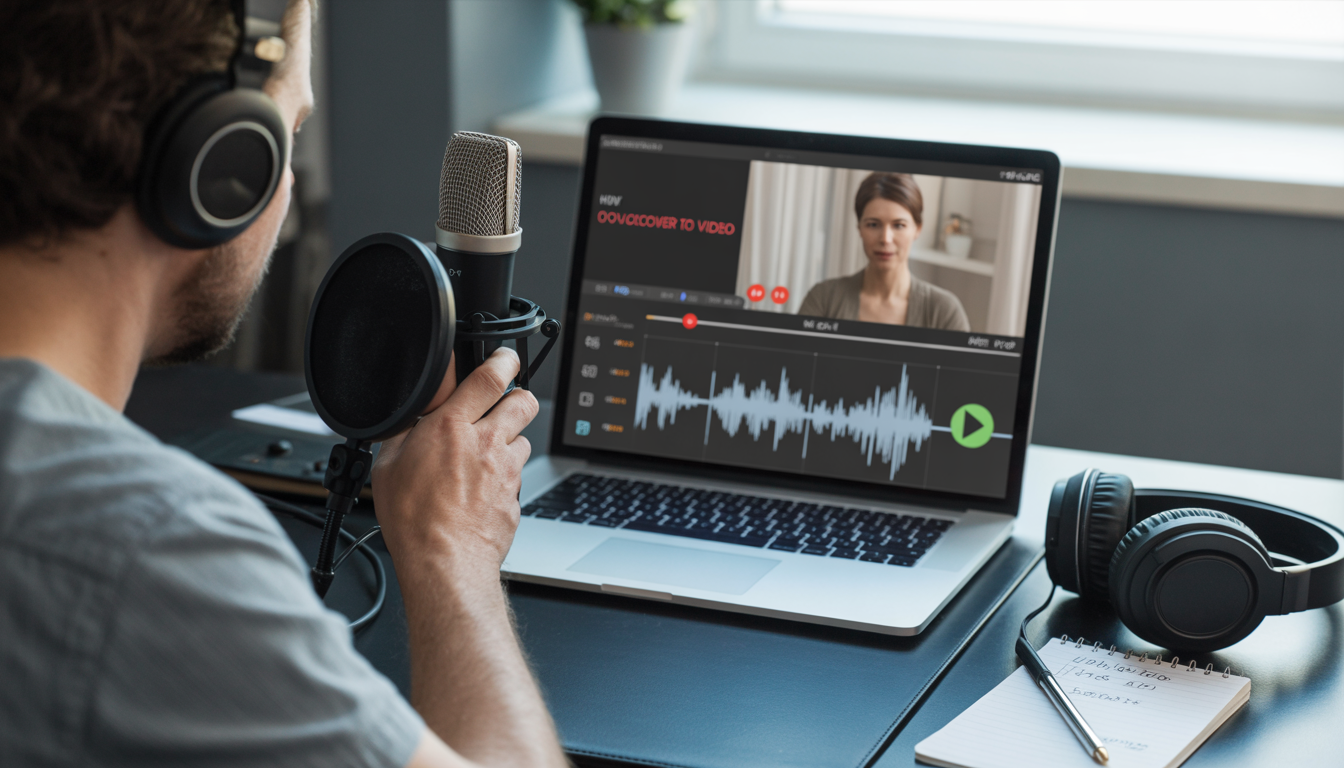
4. Import Voice into Video Editor
Now it’s time to combine everything. Use any video editing software such as:
- CapCut
- Adobe Premiere Pro
- Filmora
Then:
- Import your video file
- Add your recorded or generated voiceover
- Place the audio on the timeline under the video
This is where your video starts to come alive.
5. Sync Voice with Video
This step is extremely important for quality.
Make sure:
- The voice matches what is happening on screen
- There is no delay between visuals and explanation
- The pacing feels smooth and natural
Even small timing adjustments can significantly improve the viewer experience and make your video feel professional.
6. Edit and Improve Audio
Now refine your voiceover to make it clean and polished.
You can:
- Remove background noise or unwanted sounds
- Adjust audio volume for consistency
- Cut mistakes, pauses, or unnecessary gaps
- Smooth out transitions between sections
A clean audio track makes your video easier to watch and more enjoyable.
7. Export and Review
Before you publish, always do a final check.
- Watch the full video from start to finish
- Listen carefully to the voice clarity
- Ensure everything is properly synced
- Check if the flow feels natural
Never skip the review stage. It helps you catch small mistakes that can affect overall quality.
PAS Framework
Problem
Most beginners struggle with voiceovers because they don’t follow a proper process. As a result, the final audio often sounds unclear, rushed, or poorly matched with the video. Sometimes the voice is too fast, too slow, or simply doesn’t fit the visuals at all.
Even if the video content is good, bad voiceover quality can instantly reduce its impact.
Agitation
Now imagine being the viewer. You open a video expecting to learn something, but the voice is hard to follow. It feels unnatural or out of sync with what’s happening on screen.
What happens next?
- You lose focus quickly
- You struggle to understand the message
- You start skipping parts of the video
- Eventually, you stop watching altogether
This doesn’t just hurt engagement, it also damages trust. Viewers may think the content is low quality, even if the information is actually very valuable. Over time, this leads to fewer views, lower retention, and weaker audience growth.
Solution
The good news is that fixing this is simple if you follow the right process from the start.
You just need a clear and structured approach:
- Write a clean script first A well-planned script ensures your message is clear and easy to follow before you even start recording.
- Use clear and steady voice recording Whether human or AI, the voice should be calm, natural, and easy to understand.
- Sync audio properly with visuals Make sure the voice matches what is happening on screen so the viewer never feels lost or confused.
- Always review before publishing Watch your full video and listen carefully to catch timing or clarity issues.
Human Voice vs AI Voice (Comparison Table)
| Feature | Human Voiceover | AI Voiceover |
| Natural Feel | Very high | Improving fast |
| Speed | Slower | Very fast |
| Cost | Higher | Low or free |
| Control | Full control | Limited customization |
| Best For | Storytelling, courses | Bulk or quick videos |
Best Practices for Better Voiceovers
Creating a good voiceover is not just about speaking into a microphone, it’s about delivering your message in a way that feels clear, natural, and easy to follow. Small improvements in how you speak and prepare can make a big difference in the final result.
Here are some simple but powerful best practices you should always follow:
- Keep sentences short and clear Long and complicated sentences are harder to understand, especially in video content. Short sentences help your audience follow along easily without confusion or delay.
- Speak at a steady pace Don’t rush your words. Speaking too fast can make your voice sound unclear, while speaking too slow can lose attention. A steady, natural pace keeps your audience engaged.
- Match tone with video visuals Your voice should fit what’s happening on screen. If the video is educational, keep a calm and clear tone. If it’s exciting or promotional, add energy to your voice. This creates a better connection with the viewer.
- Avoid background noise Noise can ruin even the best voiceover. Always record in a quiet place or use noise reduction tools while editing. Clean audio makes your content sound professional.
- Always test before publishing Never skip the final check. Watch your full video, listen carefully, and make sure everything sounds smooth and properly synced. Small issues are easier to fix before publishing.
FAQs (Frequently Asked Questions)
1. What is a voiceover in video?
A voiceover is a recorded voice added to a video to explain, narrate, or guide what the viewer is seeing. It helps turn simple visuals into a clear and understandable story or lesson.2. Do I need a mic to add voiceover?
No, a microphone is not always required. While a good mic improves quality, you can also use AI voice tools that generate clear and natural-sounding voiceovers without any recording equipment.3. Which app is best for voiceover?
There are many good options depending on your needs. Popular choices include:
- CapCut (easy for beginners)
- Adobe Premiere Pro (advanced editing)
- AI voice tools (fast and automated voice generation)
Each tool serves a different purpose, so choose based on your skill level and project type.
4. Can beginners add voiceover easily?
Yes, beginners can easily add voiceovers using simple apps or AI tools. Most platforms are designed to be user-friendly, so you don’t need technical experience to get started.5. Is AI voiceover good for videos?
Yes, AI voiceovers are very useful, especially for fast production, multilingual content, and large-scale projects. However, for highly emotional or personal storytelling, human voiceovers may still feel more natural.6. How long does voiceover take?
The time depends on the length of your video and your method. A short video may take around 30 minutes, while longer or more detailed content can take a few hours including recording, editing, and syncing.7. How do I sync voice with video?
You can sync voice by using video editing software. Simply align the audio timeline with the visuals, adjust timing, and make sure the voice matches what is happening on screen without delay.8. Can I change voice after recording?
Yes, you can easily change your voiceover. You can re-record manually or regenerate it using AI tools if you want a different tone, accent, or style.9. What makes a good voiceover?
A good voiceover is:- Clear and easy to understand
- Well-timed with visuals
- Natural in tone and pacing
- Free from background noise or distractions
Clarity is always more important than perfection.
10. Is voiceover important for YouTube videos?
Yes, voiceover plays a major role in YouTube success. It improves viewer engagement, watch time, and overall video quality, making your content more professional and easier to follow.Conclusion
Adding voiceover to a video is one of the simplest yet most powerful ways to improve your content. It instantly makes your videos more clear, engaging, and professional, even if you are just starting out as a creator. A good voiceover helps you explain your message better, keeps your audience focused, and builds a stronger connection with viewers. Instead of just watching visuals, people actually understand and feel your content.
The best part is, you don’t need expensive equipment or advanced editing skills to get started. With a basic script, simple tools, and a little practice, anyone can create high-quality voiceovers. At first, it may feel a bit new or challenging, but it gets easier every time you try. The more you practice, the more natural and confident your voiceover will sound.
Start with your first video today. Record a short voiceover, add it to your video, and experience the difference yourself.