How to Turn On Voice to Text on Android (Step-by-Step Beginner Guide)
Typing on a small screen is slow.
It’s frustrating.
And honestly, it wastes more time than we realize.
You start replying to a simple message and suddenly you’re fixing typos.
You try to write a longer email and your thumbs get tired halfway through.
You have ideas. Messages. Notes. Emails.
But your fingers just can’t keep up with your thoughts.
Sound familiar?
Here’s the good news:
If you’re wondering how to turn on voice to text on Android, it takes less than two minutes to activate. And once it’s turned on, you can write up to 3x faster without typing a single word.
Instead of struggling with a tiny keyboard, you simply tap the microphone and speak. Your Android phone instantly converts your voice into text. It’s fast. It’s accurate. And it’s already built into your device.
This guide is designed specifically for beginners. No technical knowledge needed. No complicated steps. Just clear instructions you can follow right away.
Inside this guide, you’ll learn:
- How to enable voice typing on Android step by step
- Where to find and adjust voice to text settings on Android
- How to use Google Voice Typing on Android inside apps like WhatsApp, Messages, Gmail, and more
- How to improve accuracy and fix common problems if voice typing isn’t working
- Tips to make Android speech to text faster and more reliable
Whether you want to send messages quickly, take notes hands-free, write longer emails effortlessly, or simply save time every day, voice typing can completely change how you use your phone.
Let’s unlock your phone’s hidden superpower and start speaking instead of typing.
What Is Voice to Text on Android?
Voice to text also known as Android speech to text is a built-in feature that allows you to speak into your phone and instantly convert your spoken words into written text. Instead of typing with your fingers, you simply tap the microphone icon on your keyboard and start talking. Your Android device listens, processes your speech, and turns it into text in real time.
No typing.
No spelling stress.
No struggling with tiny keys.
Just speak and your phone writes for you.
This feature is powered by Google’s advanced speech recognition technology, which means it’s fast, accurate, and constantly improving. It can understand natural speech patterns, different accents, and even basic punctuation commands like “comma” and “period.”
One of the best things about voice typing is that it works almost everywhere you can type on your phone. For example:
- WhatsApp: Reply to messages quickly
- SMS/Text Messages: Send long texts effortlessly
- Gmail: Dictate emails instead of typing them
- Notes apps: Capture ideas instantly
- Google Docs: Draft content hands-free
- Social media apps: Post and comment faster
- Search bars: Find information without typing
If your keyboard appears on the screen, voice typing will work there.
For beginners, this is one of the easiest ways to boost productivity. You speak much faster than you type so voice to text helps you save time, reduce errors, and communicate more naturally. It turns your Android phone into a powerful hands-free writing assistant ready whenever you are.
Why You Should Enable Voice Typing on Android
Before we jump into how to turn on voice-to-text, let’s look at why it’s a game-changer for your daily productivity.
- Write 3-4× Faster
Most people type around 30-40 words per minute on their phone.
You naturally speak at 120-150 words per minute.
That means messages, emails, notes, captions, and even long documents get done in a fraction of the time. Less tapping, more creating. - Think More Clearly & Express Better
Speaking is more natural than typing.
Your ideas flow without constantly stopping to find the right keys, fix typos, or restructure sentences.
This is especially powerful for:
- Brainstorming ideas
- Journaling
- Content creation
- Replying to long messages
Your communication sounds more human, complete, and confident.
- Reduce Thumb Fatigue & Typing Frustration
No more:
- Sore fingers
- Tiny keyboard mistakes
- Backspacing every second
- Save Time on Everyday Tasks
- Quick Replies
- Search queries
- To-do lists
- Google Docs
- WhatsApp messages
All done in seconds without slowing down to type.
- Stay Productive While Multitasking
You can dictate while:
- Walking
- Cooking
- Driving (hands-free)
- Working on something else
Your phone turns into a real personal assistant, capturing your thoughts wherever you are.
- More Accessible for Everyone
Voice typing is also incredibly helpful for:
- People who struggle with small keyboards
- Users with hand strain or injuries
- Anyone who prefers speaking over typing
Once you get used to it, typing manually starts to feel slow and outdated.
You’ll find yourself using voice for almost everything because it’s simply easier.
How to Turn On Voice to Text on Android (Step-by-Step)
Let’s walk through it in a clear and beginner-friendly way so you can start speaking instead of typing in just a minute.Step 1: Open Your Phone Settings
First, unlock your phone and go to Settings.
- Scroll down until you find System (On some phones this may appear as General Management or Additional Settings. Don’t worry, it’s the same thing with a different name.)
- Tap Languages & input
This is the section where all keyboard and typing controls live.
Step 2: Go to Your On-Screen Keyboard
Now you’ll choose the keyboard you actually use for typing.
- Tap On-screen keyboard
- Select Gboard (or your current default keyboard)
Don’t see Gboard?
Open the Play Store, install Gboard – Google Keyboard, and set it as your default.
It’s free, fast, and gives the best voice typing experience on Android.
Step 3: Enable Voice Typing
Once you’re inside the Gboard settings:
- Tap Voice typing
- Turn ON Use voice typing
That’s it, the feature is now active.
How to Use Voice Typing on Android
Now that voice typing is enabled, let’s see how to actually use it in real life. Once you get used to it, you’ll notice you can reply to messages, write notes, and even create long content much faster than typing.
Method 1: Using the Keyboard Microphone (Most Common Way)
This is the method you’ll use every day inside apps like WhatsApp, Messages, Facebook, Instagram, Notes, or Google Docs.
Step-by-step:
- Open any app with a text field For example: WhatsApp chat, SMS, Google search bar, or your Notes app.
- Tap the text box Your keyboard will appear on the screen.
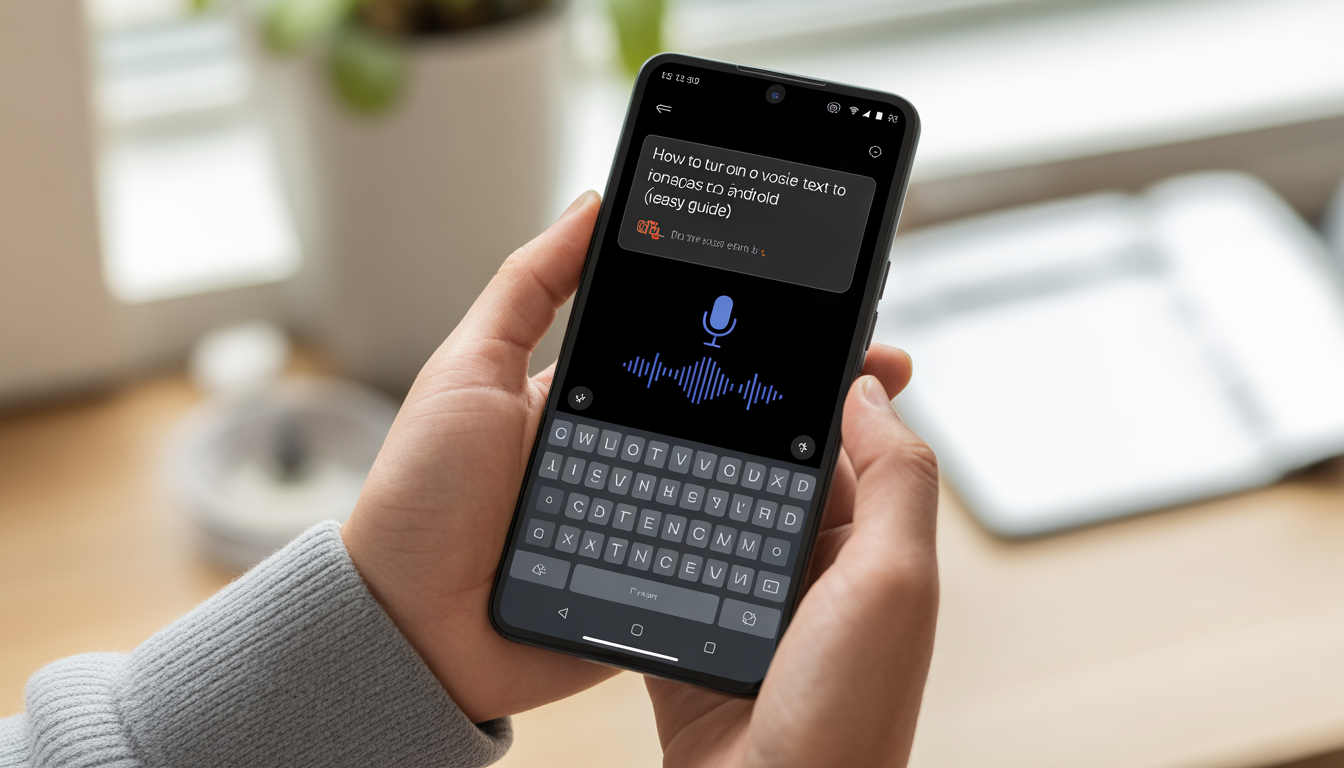
- Tap the microphone icon on the keyboard It’s usually on the top-right corner or near the space bar (location may vary slightly by phone).
- Start speaking naturally Speak clearly and at a normal speed, no need to pause after every word.
Your words will start appearing instantly in text form as you talk.
Method 2: Using Google Assistant
This method is perfect when your hands are busy or you don’t even want to touch the keyboard.
Simply say:
“Hey Google, type a message”
or
“Hey Google, send a WhatsApp message to Ali”
Google Assistant will:
- Open the correct app
- Start voice input automatically
- Convert your speech into text
This works best when:
- Google Assistant is enabled
- You’re using Google Voice Typing integration
- You want a completely hands-free experience
Adjusting Voice to Text Settings on Android (For Maximum Accuracy)
Voice typing works great out of the box but with a few smart tweaks, it becomes faster, more accurate, and bilingual-friendly.
Here’s how to optimize it like a pro.
Add Multiple Languages (Perfect for Bilingual Users)
If you switch between English, Urdu, or any other language while speaking, you don’t have to change settings every time.
How to add:
- Go to Gboard settings
- Tap Languages
- Select Add keyboard
- Choose your preferred languages
Now voice typing can recognize mixed speech (for example: English + Urdu in the same sentence).
This is extremely useful for:
- WhatsApp chats
- Notes
- Social media captions
- Daily conversations
Enable Auto Punctuation (Let AI Handle Commas & Full Stops)
On supported Android versions, Gboard can automatically insert punctuation.
Turn it on:
- Go to Gboard → Voice typing
- Enable Auto punctuation
Now you can speak normally, and it will add:
- Commas
- Full stops
- Question marks
without you saying them manually.
It makes your text look clean, professional, and ready to send.
Download Offline Speech Recognition (Use It Without Internet)
If your internet is slow or you want to save mobile data, this feature is a game changer.
Steps:
- Open Settings
- Go to Languages & input
- Tap Offline speech recognition
- Download your language
Once installed:
- Voice typing works without internet
- Faster response time
- More privacy
- Perfect for travel or low-signal areas
Turn On “Faster Voice Typing” (If Available)
On newer Android phones:
- Go to Gboard → Voice typing
- Enable Faster voice typing
This uses on-device AI to:
- Process speech instantly
- Reduce delay
- Improve accuracy
Improve Accuracy With Personalization
You can allow Gboard to learn your speaking and typing style.
This helps with:
- Your frequently used words
- Local names
- Roman Urdu
- Slang and shortcuts
Result → much smarter predictions over time.
Why Google Voice Typing on Android Is So Accurate
Google’s voice typing is powered by advanced AI trained on millions of real voice samples from different accents and languages.
That’s why it offers:
- Excellent accent recognition
- Smart grammar correction
- Context-aware word suggestions
- Real-time typing with almost no lag
- Continuous speech (no need to tap mic again and again)
It doesn’t just hear words, it understands sentences.
AIDA Framework: Why You Should Start Using Voice Typing Today
Attention: You’re Losing Time Every Single Day
Think about how many minutes or hours you spend typing:
- Replying to messages
- Writing notes
- Searching on Google
- Posting on social media
Now multiply that by 7 days a week.
You’re not just typing, you’re slowing down your own productivity.
Most people type at 30-40 words per minute,
but they speak at 120-150 words per minute.
That means every long message, every idea, every task is taking 3-4× more time than it should.
Interest: A Smarter, Faster, Easier Way to Communicate
Voice typing changes the way you use your phone.
Instead of typing… correcting… deleting… retyping
You:
- Tap the mic
- Speak naturally
- Watch your words appear instantly
It helps you:
- Reply to messages faster
- Capture ideas before they disappear
- Write long content without fatigue
- Think more clearly because you’re speaking, not struggling with the keyboard
Your communication becomes faster, smoother, and more natural.
Desire: Imagine Your Daily Life With It
Imagine this:
- You reply to long WhatsApp messages in seconds
- You write full notes while walking or travelling
- You post captions without typing a single word
- You never worry about spelling mistakes again
- Your thumbs never get tired
For students → faster assignments & better notes
For professionals → quick emails & productivity boost
For content creators → instant content anywhere
It’s not just a feature.
It’s a daily time-saving tool.
Action: Try It Once Today
You don’t need:
- Any special skills
- Any paid app
- Any setup beyond turning it on
Just:
- Tap the microphone on your keyboard
- Speak one message
- Send it
That’s it.
Once you experience:
- The speed
- The accuracy
- The convenience
You won’t go back to normal typing.
Gboard vs Other Android Speech to Text Options
| Feature | Gboard | Samsung Keyboard | Third-Party Apps |
| Free | ✅ | ✅ | Sometimes |
| Accuracy | ⭐⭐⭐⭐⭐ | ⭐⭐⭐⭐ | Varies |
| Auto punctuation | ✅ | Limited | Varies |
| Offline mode | ✅ | ✅ | Rare |
| Easy setup | Very Easy | Easy | Moderate |
Gboard. Simple. Reliable. Fast.
Common Problems (And Quick Fixes)
Microphone Not Showing?
This usually means the keyboard can’t access your mic.
- Update Gboard from the Play Store
- Go to Settings → Apps → Gboard → Permissions → Allow Microphone
- Restart your phone once — it fixes most hidden glitches
Voice Typing Not Working?
If you tap the mic and nothing happens:
- Check your internet connection (voice typing is cloud-based for best accuracy)
- Clear Gboard cache
- Install or update the offline speech recognition pack for your language
- Make sure Google app is updated (it powers voice recognition)
Poor Accuracy?
If your text looks nothing like what you said:
- Speak clearly at a normal pace
- Keep the phone closer to your mouth
- Avoid noisy environments
- Turn on personalized voice recognition in Google Assistant settings
- Use the correct input language
FAQ: How to Turn On Voice to Text on Android
1. How do I turn on voice to text on Android?
Go to:
Settings → System → Languages & input → On-screen keyboard → Gboard → Voice typing → Turn it ON
Once enabled, open any app with a keyboard and tap the microphone icon to start speaking.
2. Why can’t I find voice typing on my Android?
This usually happens for one of three reasons:
- Your current keyboard doesn’t support it
- Voice typing is turned off in keyboard settings
- The Google app is outdated
Install or switch to Gboard from the Play Store and update the Google app, the mic will appear.
3. Is Android speech to text free?
Yes. Google Voice Typing is completely free and comes built into Gboard.
There are no subscriptions or hidden charges.
4. Can I use voice typing offline?
Yes.
Download the offline speech recognition pack:
Gboard Settings → Voice typing → Offline speech recognition → Download your language
Offline mode is slightly less accurate than online mode, but it works perfectly for basic typing when you don’t have internet.
5. Does voice typing work in WhatsApp and other apps?
Yes.
It works in any app where your keyboard opens, including:
- Messenger
- Gmail
- Notes apps
- Google Docs
If you can type there, you can speak there.
6. Is voice typing accurate?
Very accurate often 90-95% or higher with:
- Clear speech
- Normal pace
- Good internet
- Low background noise
It also learns your voice and common words over time, which improves accuracy.
7. How do I add punctuation while speaking?
You have two options:
- Say the punctuation: “comma”, “period”, “question mark”, “new line”
- Turn on Auto punctuation in voice typing settings (available on many devices)
8. Can I use multiple languages?
Yes. You can add and switch between languages inside Gboard.It can even:
- Detect languages automatically (on supported devices)
- Handle bilingual typing smoothly
Perfect for users who mix English + Urdu/Hindi in daily conversations.
9. Is voice typing safe and private?
Yes. Google processes voice data securely.
You also have full control:
- Turn the feature on/off anytime
- Disable microphone permission
- Delete voice activity from your Google account
Your privacy settings are always in your hands.
10. Does voice typing drain battery?
No significant drain.
Battery usage is similar to normal keyboard typing and only slightly higher while actively using the microphone.
11. Can I edit text using my voice?
Yes. On supported devices you can say:
- “Delete last word”
- “Clear all”
- “Replace with”
This makes hands-free writing even faster.
12. Who should use voice typing?
Voice typing is perfect for:
- Students taking quick notes
- Content creators
- Busy professionals
- Anyone who types long messages daily
If you think faster than you type this feature is for you.
Final Thoughts: Stop Typing. Start Talking.
You don’t need faster thumbs.
You need smarter tools.
Voice typing isn’t a hidden feature anymore, it’s a daily advantage.
And now you know exactly how to turn on voice to text on Android and start using it in minutes.
Think about how much time you spend every day: Typing messages.
Writing notes.
Replying to emails.
Creating content.
Now imagine doing all of that 3-4× faster with less effort and fewer mistakes.
That’s not a hack.
That’s built into your phone.
It takes less than two minutes to activate but it gives you back hours every single week.
For beginners, this is one of the simplest and highest-impact productivity upgrades you can make today:
- No new app to learn
- No cost
- No technical skills required
Just tap the mic and speak.
And the real magic?
It removes the friction between your thoughts and your output.
Your ideas flow faster.
Your replies become effortless.
Your content creation speeds up.
Your phone finally works at your pace not the other way around.
So don’t just read about it.
Turn it on.
Test it in one message.
Use it for your next note.
Try it for brainstorming.
Make it a daily habit.
Because once you start using Android speech to text regularly, typing long paragraphs with your thumbs will feel slow, outdated, and unnecessary.
This is not just about convenience.
It’s about working smarter, creating faster, and saving your mental energy for what actually matters.
Go to your settings now.
Enable voice typing on Android.
Your future self, the one who writes faster, responds quicker, and gets more done in less time will thank you.