How to See Live Chat on YouTube Mobile (Step-by-Step Guide)
Introduction: Missing Live Chat? Here’s What’s Going On
You open a live stream on YouTube, ready to watch, but something feels off.
There’s no chat.
No messages popping up.
No one reacting.
It’s just the video and that’s it.
Kind of annoying, right? Especially when you know people are supposed to be talking there in real time.
Here’s the simple truth:
Live chat on YouTube mobile is there, it’s just a little hidden if you don’t know where to look.
Don’t worry though.
In this guide, I’ll show you exactly how to find it, turn it on, and fix it if it’s not showing, so you don’t miss out on the conversation again.
1. How to Enable Live Chat on YouTube Mobile
Let’s start with the basics. Getting into the live conversation is easier than you think.
Here’s what you do:
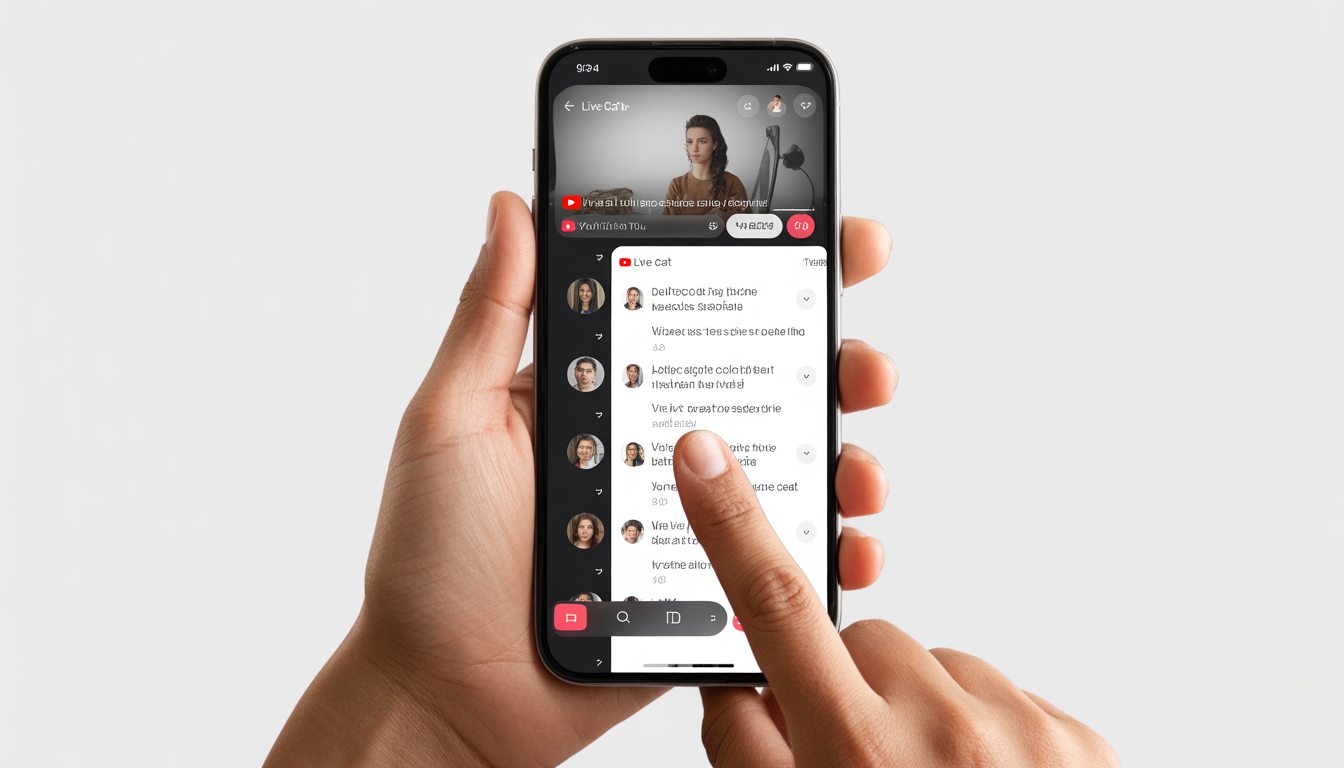
- Open the YouTube app on your phone.
- Tap on any live stream video you want to watch.
- Look just below the video player.
- Tap “Live Chat” or “Top Chat”.
- Boom, the chat box pops up, and you’re in!
That’s it. Now you can see what everyone’s saying in real time.
2. Switch Between “Top Chat” and “Live Chat”
Sometimes you see chat, but not all of it. That’s because YouTube filters messages by default.
To see everything:
- Tap on “Top Chat”
- Switch to “Live Chat”
Why it matters:
- Top Chat hides some messages to reduce spam.
- Live Chat shows all messages as they happen.
This way, you won’t miss anything.
3. Turn Your Phone to Portrait Mode
Here’s a trick most people miss: chat can disappear if you’re watching in full-screen landscape mode.
Quick fix:
- Rotate your phone back to portrait (vertical) mode.
- Chat magically appears right below the video.
4. Update the YouTube App
If chat still isn’t showing, your app might be old. Updating usually fixes it.
Do this:
- Open the Google Play Store.
- Search for YouTube.
- Tap Update.
Why it helps:
- Fixes bugs.
- Brings back missing features.
- Makes the app run smoother.
5. Check If Chat Is Disabled by the Creator
Sometimes, chat isn’t your fault, it’s the creator’s settings.
Here’s why it might not show:
- The creator turned chat off.
- The video is labeled “Made for Kids”.
- Comments or chat are restricted.
What you can do:
- Try a different live stream.
- Check if chat works on another video.
6. Quick Fixes for Common Live Chat Problems
Still nothing? Don’t panic. A few simple tricks usually do the job.
Try these:
- Restart the YouTube app.
- Clear the app cache.
- Check your internet connection.
- Log out and log back in.
These tiny steps fix most issues and get you chatting again in seconds.
Why You Should Use Live Chat (AIDA Style)
Attention: Live chat turns a YouTube stream from “just a video” into something exciting. Suddenly, it’s not just you watching, it feels like everyone’s there together.
Interest: You can jump in, say hi, ask questions, or reply to what other viewers are saying, right as it happens. No waiting, no missing the moment.
Desire: Imagine asking the creator something and actually seeing their response. Or reacting with everyone else when something funny or shocking happens. You’re part of the action, not just sitting on the sidelines.
Action: Don’t wait, tap that live chat, start typing, and join the conversation. It’s that simple to be part of the fun.
YouTube Mobile Chat: Quick Comparison
| Feature | Without Chat ❌ | With Live Chat ✅ |
|---|---|---|
| Interaction | None | Real-time engagement |
| Experience | Passive watching | Active participation |
| Community Feel | Missing | Strong connection |
| Engagement Level | Low | High |
FAQ: How to See Live Chat on YouTube Mobile
Q1. Why can’t I see live chat on YouTube mobile?
Sometimes it just doesn’t show up. Usually, it’s hidden, the creator turned it off, or you’re watching in full-screen mode. Switching back to portrait often fixes it.
Q2. Where exactly is live chat on my phone?
Look right below the video when your phone is vertical. That’s where all the messages pop up.
Q3. What’s the difference between Top Chat and Live Chat?
Top Chat shows only the most relevant messages, so some might be hidden. Live Chat shows everything happening in real time.
Q4. Can I type in chat while in full-screen?
Nope. You need to leave full-screen to see the chat box and send messages.
Q5. Why do some videos have chat turned off?
The creator might have disabled it, or the video is set for kids or restricted. It’s not your phone, just the settings.
Q6. Will live chat work on any phone?
Yes! As long as your YouTube app is updated, live chat should work just fine.
Q7. How do I actually type a message in live chat?
Tap on the chat box below the video and start typing. Hit send, and you’re in the conversation.
Q8. Can I hide or close live chat if I don’t want it?
Absolutely. You can minimize it or close it whenever you like.
Q9. My chat isn’t loading, what should I do?
First, check your internet connection. If it’s fine, try restarting the app. That usually does the trick.
Q10. Can I see live chat on a recorded video?
Only if the creator included the live chat in the replay. If not, it won’t show up.
Conclusion: Start Chatting on YouTube Now
Seeing live chat on YouTube mobile is way easier than it looks. You don’t need to overthink it.
Here’s all you really have to do:
- Open any live video.
- Make sure your phone is in portrait mode.
- Tap the chat option.
That’s it, super simple.
Now it’s your turn:
- Open YouTube.
- Jump into a live stream.
- Turn on live chat.
Because YouTube isn’t just about watching videos, it’s about being part of the action, talking with others, and joining the fun in real time.