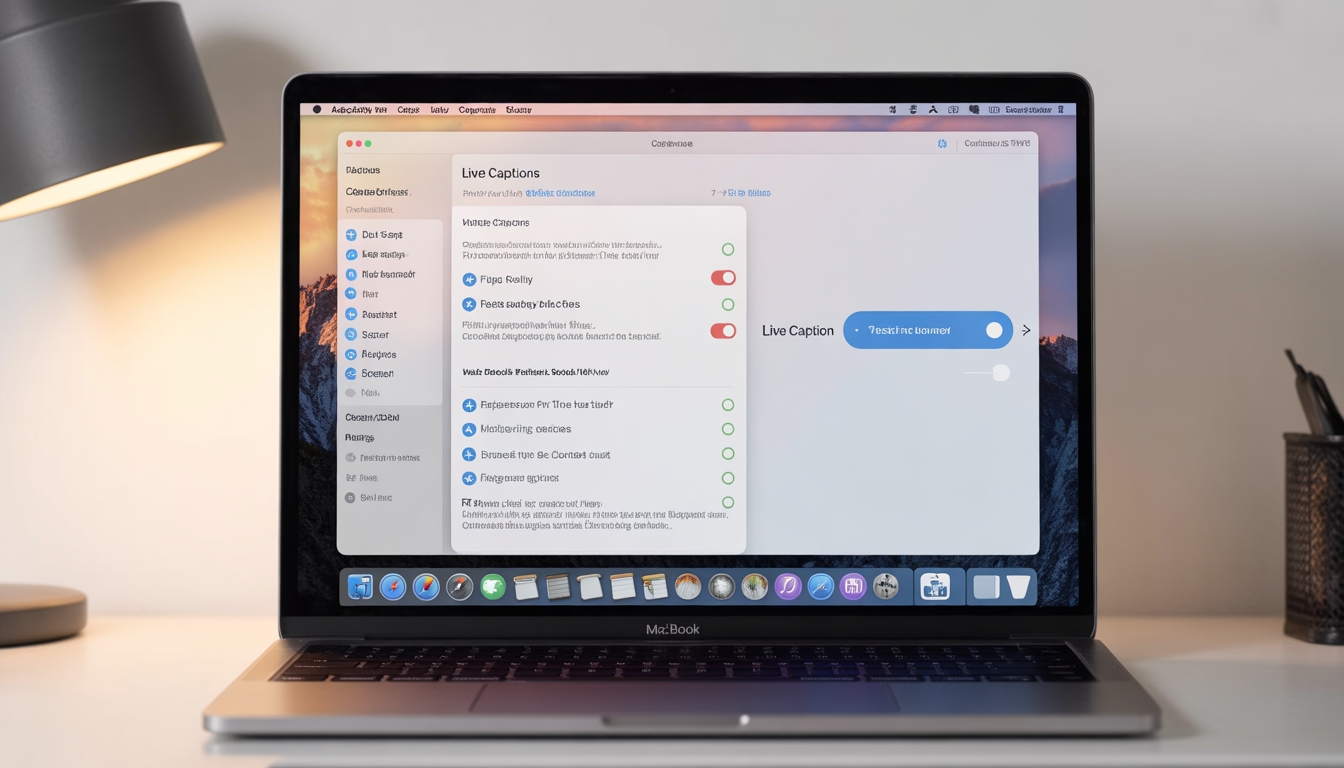
How to Turn Off Live Caption on MacBook (Step-by-Step for Beginners)
You open your MacBook, excited to watch a YouTube video. The sound is crisp, the visuals are sharp, and you’re ready to relax or learn something new.
Then it happens. Captions appear at the bottom of your screen. Automatically. Without warning.
You didn’t turn them on. You didn’t touch any settings. Yet there they are again, sometimes obscuring part of the video, other times just distracting you from what you really want to focus on.
If you’ve ever thought any of these:
- “Why do captions keep turning on by themselves?”
- “Why won’t YouTube captions turn off on my MacBook?”
- “Is this a macOS bug or a YouTube problem?”
You’re not alone. And you’re definitely not doing anything wrong.
Modern MacBooks and macOS have a built-in accessibility feature called Live Captions. While it’s incredibly helpful for people who are hard of hearing or need subtitles, it can sometimes activate automatically across apps, including YouTube and streaming platforms.
For beginners, this can feel confusing and even frustrating. You may have tried clicking the small “CC” button on YouTube, only to find captions turning back on, or navigating system settings and getting lost in menus that seem designed for technical users.
Why You Should Learn to Turn Off Live Captions Properly
Leaving live captions enabled when you don’t need them can:
- Distract from your viewing experience
- Cover important parts of the video interface
- Make videos look cluttered or harder to follow
Turning them off properly ensures that:
- You control your viewing experience
- Subtitles won’t appear unexpectedly
- You can enjoy videos without interruptions or visual clutter
This guide walks you step-by-step, in simple, easy-to-follow language. By the end, you’ll know exactly how to:
- Turn off YouTube captions on your MacBook permanently
- Disable macOS live captions correctly across all apps
- Stop subtitles from appearing automatically
- Fix the recurring “YouTube captions won’t turn off Mac” issue once and for all
Whether you’re a beginner, a student, or just someone who prefers a clean, uncluttered screen, this guide will help you take back control of your MacBook viewing experience.
Let’s dive in and clean up your screen, so you can enjoy videos exactly the way you want, no unexpected captions, no distractions, just smooth, uninterrupted playback.
What Are Live Captions on MacBook?
Have you ever been watching a video on your MacBook and noticed subtitles popping up without warning? Maybe you didn’t click any buttons, and yet there they were, overlaying your screen like they had a mind of their own. Those are live captions, AI-generated text that appears automatically while audio or video plays.
Live captions are designed with accessibility in mind. They help users who are hard of hearing, learning a new language, or watching videos in noisy environments. In that sense, they’re incredibly useful. However, for many MacBook users, these captions can also become unexpected and distracting, especially when they appear without consent or keep turning back on even after being disabled.
Understanding how live captions work on macOS is key to finally taking control of your viewing experience. On a MacBook, captions generally come from two main sources, and knowing the difference is the secret to stopping them for good.
1. YouTube’s Built-In Captions
YouTube, as the world’s largest video platform, offers two types of captions:
- Manual subtitles added by the video creator Some creators take the time to write and upload their own captions. These are usually accurate and synchronized with the video, and they can typically be toggled off or on using the CC (closed captions) button on the YouTube player.
- Auto-generated captions created in real-time by YouTube’s AI YouTube also has an automatic speech recognition system that generates captions on the fly. These are convenient because they appear even if the creator hasn’t provided captions, but they’re not always perfect. AI-generated captions can sometimes be inaccurate, miss words, or appear at odd times.
Even when you turn these captions off, there are situations where they keep reappearing:
- If your settings aren’t saved or synced across devices
- If you switch accounts or browsers
- If YouTube experiences a temporary glitch in storing preferences
In short, while YouTube captions are generally easy to control, they can feel unpredictable if you’re not familiar with the platform’s settings.
2. macOS Accessibility Captions
MacBooks also have system-level captions built into macOS as part of the operating system’s accessibility features. These captions are designed for users who rely on subtitles across all apps and platforms, not just YouTube.
Here’s why macOS captions are a little trickier:
- They can override app-level settings, meaning even if you turn off captions in YouTube or another app, macOS can bring them back automatically.
- They are AI-powered, generating text for any audio or video that plays on your device.
- They can appear in unexpected situations, such as video calls, streaming apps, or educational software.
This system-level functionality is a powerful accessibility tool but for users who don’t need it, it can feel intrusive. It’s also why many MacBook users feel like captions have a mind of their own.
Why Both Sources Matter
The key to permanently turning off live captions is to address both sources:
- YouTube settings: Ensure captions are toggled off and your preferences are saved.
- macOS accessibility settings: Make sure system-level live captions are disabled so they can’t override your app settings.
Fix one without the other, and captions will inevitably sneak back onto your screen, making it seem like your MacBook is defying you.
Once you understand this distinction, you gain full control over your viewing experience:
- No more unwanted subtitles appearing mid-video
- No more distractions covering visuals
- Smooth, clean video playback exactly how you want it
By addressing both YouTube and macOS settings, you can finally take back control and enjoy videos on your MacBook the way they were meant to be seen without interruptions.
Why Live Captions Keep Turning On (The Real Reason)
If you’re like most MacBook users, your first instinct is to blame YouTube. “It must be a bug,” you think. Or maybe you suspect the video itself is at fault.
The truth? It’s not YouTube alone, it’s your MacBook talking behind the scenes.
Live captions can feel like they have a mind of their own, appearing unexpectedly on videos even after you’ve turned them off. The reason isn’t magic, it’s usually one or more hidden settings working quietly in the background. Understanding these will help you finally take control.
1. macOS Accessibility Captions Are Enabled
Your MacBook is designed to help users with accessibility needs, and in many cases it does exactly that. But sometimes “help” can mean automatically showing captions across apps even when you don’t want them.
These system-level captions can override any app-specific setting, which is why turning off captions in YouTube alone often doesn’t solve the problem. If your MacBook’s accessibility captions are enabled, they will appear on every video or audio playback, including YouTube, streaming apps, and even some video conferencing tools.
2. YouTube Auto-Captions Are Saved to Your Google Account
You may have turned captions off at some point, but YouTube remembers your preferences across devices if you’re signed into your Google account.
Here’s what happens:
- You disable captions on one video
- You switch devices or reload YouTube
- Your preferences sync differently, or auto-captions remain enabled for some videos
The result? Captions sneak back in unexpectedly, even when you thought you had turned them off for good.
3. Browser or App Syncing Preferences
The problem isn’t limited to YouTube or macOS, your browser or app can also play a role. Whether you’re using Chrome, Safari, or Firefox, syncing preferences across devices can override your local settings, causing captions to turn back on without warning.
For example, if you previously enabled captions on another Mac or iPad signed into the same account, those settings may propagate across devices, making it seem like captions are reappearing randomly.
4. Hard-Coded Subtitles by Video Creators
Some videos come with subtitles embedded directly into the video. These are often called “hard-coded” or “burned-in” captions. Unlike YouTube’s toggleable captions, hard-coded subtitles cannot be turned off, no matter how many times you click the CC button.
If you encounter captions that simply won’t disappear, it’s worth checking whether the video itself includes these permanent subtitles.
As long as you only turn off captions in YouTube, your MacBook can still force them back on.
The key to finally taking control is to address both YouTube and macOS settings simultaneously, and to be mindful of syncing preferences across devices and browsers. Once you do, unwanted captions become a thing of the past.
By understanding the hidden causes behind these recurring subtitles, you can:
- Stop guessing which setting is responsible
- Eliminate the frustration of captions appearing unexpectedly
- Enjoy videos on your MacBook exactly how you want without distractions or clutter
Taking control is just a few steps away, and it’s easier than most people think once you know where to look and what to disable.
How to Turn Off Live Caption on MacBook (YouTube – Fast & Easy Fix)
If captions suddenly appear on your YouTube videos, it can be distracting, especially when you didn’t even enable them. The good news? Turning them off takes just a few clicks, and you can get back to watching videos without clutter.
Method 1: Turn Off Captions During Video Playback
This is the quickest and simplest way to remove live captions instantly. No technical skills required.
Follow these steps:
- Open YouTube on your MacBook using Safari, Chrome, or Firefox.
- Play any video you like.
- Hover your cursor over the video player to reveal playback controls.
- Look for the CC (Closed Captions) icon, it’s usually at the bottom right.
- If the icon is highlighted, captions are currently ON.
- Click the CC icon once to turn captions OFF.
That’s it! Your screen instantly becomes cleaner, distraction-free, and more enjoyable to watch.
Always make sure you’re signed into your Google account. If you’re logged out, YouTube won’t save your caption preferences, and they may come back the next time you watch a video.
If you want captions off by default for all videos, combine this method with YouTube’s auto-caption settings, this ensures captions don’t sneak back even after refreshing or opening a new video.
Turn Off Auto Captions Permanently on YouTube (MacBook)
Are captions on YouTube constantly reappearing no matter what you do? Chances are, YouTube’s auto-caption feature is the culprit. These auto-generated subtitles are designed to help, but if you don’t need them, they can be incredibly distracting.
Here’s how to turn them off permanently and take full control of your MacBook viewing experience.
Method 2: Disable Auto Captions from YouTube Settings
Follow these simple steps, no tech expertise required:
- Open YouTube on your MacBook using Safari, Chrome, or Firefox.
- Click your profile picture in the top-right corner.
- Select Settings from the dropdown menu.
- Navigate to Playback and performance.
- Find the caption options and turn OFF:
- Always show captions
- Include auto-generated captions
Make sure you’re signed into your Google account so YouTube saves these settings across all your devices.
Once this is done, YouTube will stop forcing captions on your videos. No more popping subtitles, no more distractions, just smooth, clean viewing every time.
Disable Live Captions in macOS (The Step Most People Miss)
Here’s the truth: even if you’ve turned off captions in YouTube, your MacBook can still force subtitles to appear. That’s because macOS has its own accessibility caption system and it often overrides every other setting.
Skipping this step is why so many users keep seeing captions no matter what they do. Don’t worry we’ve got the permanent fix.
Method 3: Turn Off macOS Accessibility Captions
Follow these steps to regain full control over your screen:
- Click the Apple menu () in the top-left corner of your screen
- Open System Settings
- Select Accessibility from the sidebar
- Click Captions
- Toggle OFF → Closed Captions + SDH
Once this is turned off, macOS will stop forcing captions across all apps, browsers, and media players. This isn’t just a temporary fix, it’s the step that makes your caption problem disappear for good.
Think of it like flipping a master switch: no more surprise subtitles, no more distractions. Just a clean, distraction-free screen every time you watch videos, tutorials, or movies.
PAS Framework: Why Turning Off Live Captions Matters
Problem
Picture this: You’re watching a tutorial, a movie, or a music video on your MacBook. Suddenly, captions pop up without warning.
They cover key visuals. They block important text. And worst of all, they weren’t even invited.
Live captions can feel like a “helpful” feature, but when they appear unexpectedly, they clutter your screen and steal your focus.
Agitation
And it gets worse:
- They mishear words, turning “important instructions” into nonsense.
- They lag behind the audio, making it impossible to follow along naturally.
- They interrupt your flow, whether you’re learning, streaming, or creating content.
Instead of making life easier, they end up distracting you at the worst possible moments, like the middle of a crucial tutorial or an emotional movie scene.
You know the frustration: You click CC and they magically come back, like they’re mocking you.
Solution
Here’s the good news: You don’t have to live like this.
By turning off live captions once and properly, you reclaim control over your MacBook experience. Here’s what you get:
- A cleaner screen: No more text blocking your visuals
- Better focus: Follow tutorials, presentations, and videos without distraction
- More immersive viewing: Enjoy movies, music, and content the way it was meant to be experienced
- Full control over your content: You decide what appears on your screen, not an algorithm
Because let’s face it: you should be in charge of what you see, not your MacBook, YouTube, or AI-generated captions.
Once you disable captions correctly, they stay off across all apps and browsers, no more constant toggling, no more frustration, just smooth, distraction-free viewing.
Live Captions vs Auto Captions vs Hard-Coded Subtitles
| Feature | Live Captions | Auto Captions | Hard-Coded Subtitles |
| Generated in real time | ✅ Yes | ❌ No | ❌ No |
| Accuracy | ⚠️ Medium | ⚠️ Varies | ✅ High |
| Can be turned off | ✅ Yes | ✅ Yes | ❌ No |
| Controlled by system | ❌ | ❌ | ❌ |
| Controlled by creator | ❌ | ❌ | ✅ Yes |
| Common issue | Lag, errors | Wrong words | Cannot disable |
If captions won’t turn off no matter what you do, they’re likely hard-coded into the video by the creator.
Remove Subtitles on YouTube Mac (Ultimate Troubleshooting Checklist)
Still seeing captions after trying the basic steps? Don’t worry, you’re not alone. Sometimes, YouTube captions or macOS accessibility settings can be stubborn, but this checklist will help you eliminate them for good. Follow each step carefully, and you’ll have a clean, distraction-free screen in minutes.
Step-by-Step Checklist to Remove Captions
- Sign into your Google account Make sure you’re logged in. YouTube saves caption preferences per account, if you’re logged out, turning off CC won’t stick.
- Turn off CC during video playback Hover over the video and click the CC (Closed Captions) icon. Make sure it’s not highlighted. This disables captions instantly for the current video.
- Disable auto captions in YouTube settings Go to Settings → Playback and performance, and turn off:
-
- Always show captions
- Include auto-generated captions
This prevents YouTube from forcing subtitles on future videos.
- Turn off macOS accessibility captions Open System Settings → Accessibility → Captions, and toggle Closed Captions + SDH OFF. Even if YouTube captions are off, macOS can override them, this is a crucial step.
- Restart your browser Sometimes changes don’t take effect until the browser is refreshed. Close all tabs, restart, and check again.
- Clear your browser cache Old settings or cookies can interfere. Clearing your cache ensures YouTube and macOS load your updated preferences.
- Update macOS to the latest version Running the latest software ensures compatibility and eliminates unexpected caption bugs.
Go through these steps in order, and captions should disappear for good. For most users, this resolves the issue 90% of the time, so you can finally enjoy YouTube, tutorials, movies, or music without captions cluttering your screen.
Frequently Asked Questions (FAQs)
Q1. Why do captions turn on automatically on MacBook?
A: Captions often appear on their own because macOS accessibility captions or YouTube auto-captions are enabled. These features are designed to help, but if you don’t need them, they can be a little intrusive. Disabling them is the key to a clean, distraction-free screen.
Q2. How do I permanently turn off live captions on MacBook?
A: The permanent fix is simple:
- Turn off captions in YouTube settings
- Disable macOS accessibility captions
Once both are off, captions stop appearing automatically, no more toggling the CC button every time.
Q3. Why won’t YouTube captions turn off on Mac?
A: Even if you turn them off in YouTube, macOS accessibility settings can override your choice. That’s why it sometimes feels like YouTube “won’t listen.” Fixing both YouTube and macOS settings solves the problem permanently.
Q4. Can I turn off auto captions on YouTube MacBook?
A: Yes! You can prevent YouTube from generating captions automatically by disabling the “Include auto-generated captions” option in YouTube settings. This ensures future videos won’t force captions on your screen.
Q5. Do caption settings sync across devices?
A: If you’re signed into the same Google account, YouTube caption preferences do sync across devices. But remember macOS system settings are device-specific, so captions might still appear if accessibility captions are enabled on a different Mac.
Q6. Are live captions the same as subtitles?
A: Not exactly. Live captions are AI-generated in real time, which means they’re fast but sometimes inaccurate. Subtitles, on the other hand, are usually added by creators and tend to be more accurate but they might be hard-coded and impossible to remove.
Q7. Can creators force subtitles?
A: Yes. If subtitles are hard-coded into a video, there’s no way to turn them off. These are permanently baked into the video by the creator, unlike live captions or YouTube auto-captions.
Q8. Does turning off captions affect accessibility?
A: Only if you rely on captions for accessibility. Turning them off won’t break anything you can re-enable captions anytime in macOS or YouTube if needed.
Q9. Can I customize captions instead of disabling them?
A: Absolutely! YouTube lets you adjust:
- Font size
- Color
- Background
- Opacity
This way, captions can be easier on the eyes without taking over your screen.
Q10. Will this work on all browsers?
A: Yes. Safari, Chrome, and Firefox all respect both YouTube and macOS caption settings. Just make sure your system and browser are updated for the smoothest experience.
Final Thoughts: Take Full Control of Your MacBook Viewing Experience
Live captions are helpful for some but not everyone. The truth is, they’re optional, not mandatory, and you shouldn’t let them dictate how you watch videos.
When you turn off live caption on your MacBook the right way, you’re not just hiding text you’re reclaiming your viewing experience. Imagine this:
- Cleaner visuals: Enjoy videos without unnecessary text cluttering your screen
- Better focus: Absorb tutorials, movies, and music without distractions
- Fewer interruptions: Captions won’t lag, misread words, or pop up randomly
- Full control over your screen: You decide what appears, not an AI algorithm
Disable captions once, fix the right settings, and never fight the CC button again. It’s that simple.
Take action today:
- Adjust your YouTube settings
- Turn off macOS accessibility captions
- Clear your browser cache if needed
Once you do this, you’ll enjoy YouTube, movies, and tutorials the way they were meant to be smooth, immersive, and distraction-free.