Why You Might Want to Turn Off YouTube AI Dubbing
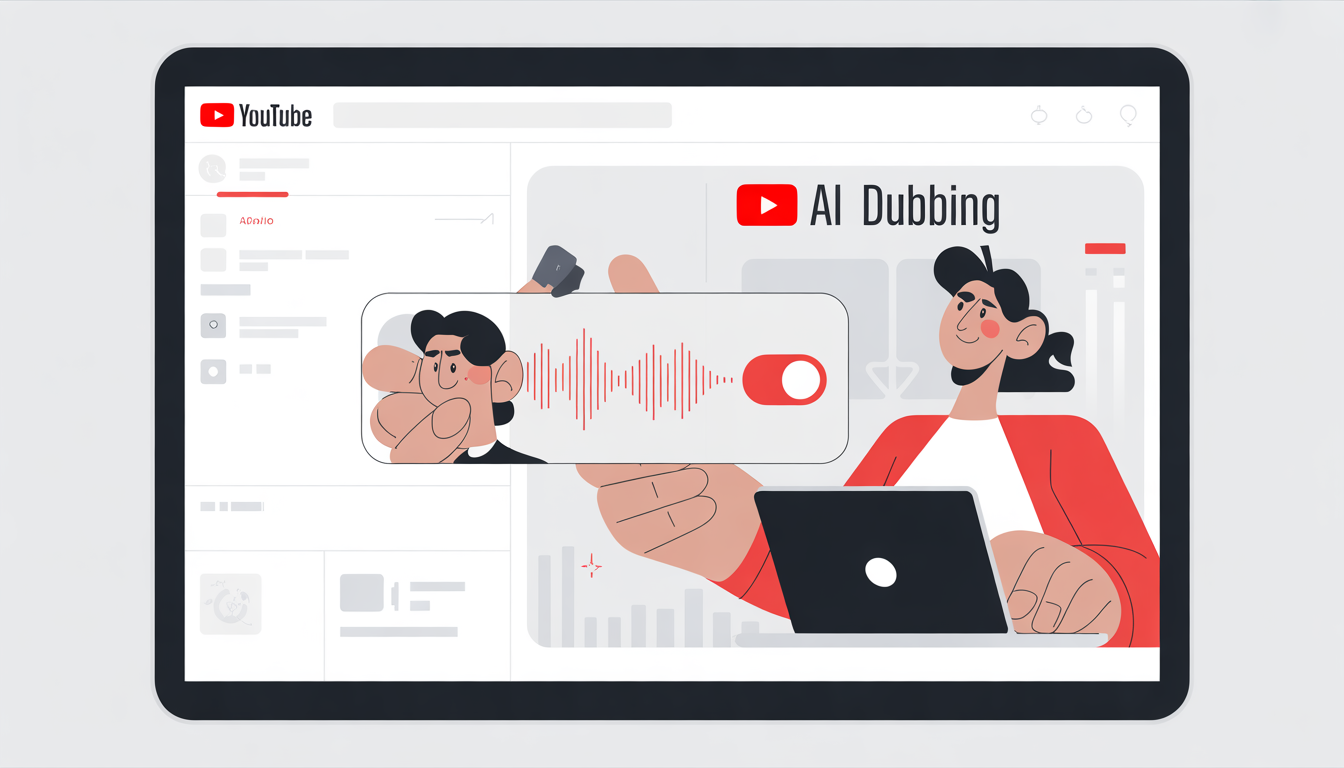
YouTube’s AI dubbing can be a handy tool for reaching multilingual audiences, but it’s not without its flaws.
Sometimes, AI-generated voices can feel robotic or unnatural, translations may miss the mark, and captions don’t always sync perfectly with the audio. For creators, educators, marketers, and casual viewers, these issues can hurt comprehension, reduce engagement, and make videos less enjoyable.
The great news? You don’t have to settle for it. By turning off AI dubbing, you gain full control over your audio, captions, and overall viewing experience, so you can enjoy content the way it was meant to be heard.
In this guide, we’ll show you exactly how to disable YouTube AI dubbing on desktop, mobile, and smart TVs, and share tips, best practices, and tricks to make your viewing experience smoother, more accurate, and fully under your control.
By the end of this guide, you’ll know how to take charge of your YouTube experience and enjoy videos the way you want without robotic voices or mismatched translations.
Step-by-Step Guide: How to Turn Off YouTube AI Dubbing on Desktop
Disabling YouTube AI dubbing on your Windows or Mac computer is quick and gives you full control over your viewing experience. Follow these simple steps:
- Open YouTube in your preferred browser and log in to your account.
- Click on your profile picture in the top-right corner to access your settings.
- Navigate to Settings → Playback and Performance.
- Look for AI Dubbing or Automatic Language Dubbing (the exact label may vary depending on your region).
- Toggle the option off to disable AI dubbing instantly.
- Optional Tip: Review your captions and subtitles settings to ensure they match your preferred language and display style. This ensures a smooth, distraction-free viewing experience.
- Pro Tip: Refresh the page or restart your browser to make sure the new settings take effect across all videos.
2. On Mobile (iOS / Android)
Disabling AI dubbing on your phone is quick and gives you full control over how videos sound and display. Follow these steps:
- Open the YouTube app on your iPhone or Android device.
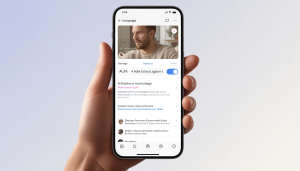
- Tap your profile icon in the top-right corner → go to Settings → Captions & AI Dubbing.
- Toggle AI dubbing off to stop automatic AI voiceovers.
- Select your preferred language for captions if needed, this ensures subtitles match your video perfectly.
- Restart the app to apply the changes and enjoy a smooth, distraction-free viewing experience.
3. On Smart TVs or Streaming Devices
Watching YouTube on a smart TV or streaming device? You don’t have to put up with AI-generated voices or mismatched translations. Follow these simple steps to turn off AI dubbing and take full control of your viewing experience:
- Open YouTube on your smart TV or streaming device.
- Go to Settings → Captions & Audio.
- Look for AI Dubbing or Auto Dubbing (the label may vary depending on your device and region).
- Toggle the feature off to disable AI-generated voices.
- Optional: Customize your experience by selecting manual audio tracks or subtitles in your preferred language.
Why Disabling AI Dubbing Improves Your YouTube Experience
Turning off YouTube AI dubbing isn’t just a matter of preference, it offers real, tangible benefits that enhance both viewing and content creation. Here’s why taking control is the smarter choice:
- Better Accuracy: Say goodbye to robotic voices, awkward intonation, and mistranslations. Manual audio and captions ensure your message is always clear and professional.
- Improved Engagement: Viewers focus on your content instead of being distracted by unnatural AI-generated voices, increasing watch time and retention.
- Full Control: Choose exactly which audio and captions your audience experiences, making your videos more tailored and enjoyable.
- Accessibility-Friendly: Manual captions are often more readable and precise, providing a better experience for hearing-impaired viewers or those watching in noisy environments.
- Faster Playback Experience: Disabling AI dubbing can reduce processing load, helping videos load and play faster, especially on slower internet connections.
- Professional Presentation: For educators, marketers, and creators, turning off AI dubbing ensures your content looks polished and credible, helping build trust and authority.
Tips and Best Practices for YouTube Audio and Captions
Disabling YouTube AI dubbing is just the first step. To get the best viewing and listening experience, follow these expert tips:
- Always double-check captions: Even manual captions can have errors. Reviewing ensures accuracy and clarity, especially for technical terms or names.
- Set your default language preferences: YouTube remembers your settings across devices, saving time and giving you consistent control over audio and captions.
- Combine captions with audio: Using manual captions alongside original audio provides the best comprehension, particularly for non-native speakers.
- Use headphones for clarity: Headphones improve voice clarity and focus, making it easier to follow videos without distraction.
- Stay updated: YouTube frequently updates its interface and AI features. Revisit your settings regularly to ensure AI dubbing stays disabled.
- Test on multiple devices: Check videos on desktop, mobile, and smart TVs to make sure settings sync correctly.
- Leverage captions for learning and accessibility: Even with AI dubbing off, captions can help retain information, improve understanding, and support hearing-impaired viewers.
- Adjust playback speed strategically: Paired with captions, adjusting speed can enhance comprehension and retention, especially for long tutorials or lectures.
PAS Framework: Why Turning Off AI Dubbing Is a Game-Changer
Problem
You’re watching or creating videos, but YouTube’s AI dubbing mispronounces names, adds robotic voices, or produces awkward translations. It can feel jarring, reduce comprehension, and make your content less enjoyable for viewers.
Agitate
The result? Engagement drops, viewers get confused, and your videos appear less professional. Spending hours manually correcting AI-generated errors drains your time and creativity, leaving you frustrated and distracted from creating more content.
Solution
The simplest fix is to turn off YouTube AI dubbing. By switching to your preferred audio or captions, you regain full control over your videos, ensuring:
- Clear, human-sounding audio for a natural viewing experience
- Accurate translations and captions for global audiences
- Faster, smoother playback without AI processing delays
- Professional, polished content your viewers can trust
YouTube AI Dubbing vs Manual Control / Subtitles
| Feature | YouTube AI Dubbing | Manual Control / Subtitles |
| Voice Naturalness | ⚠️ Robotic | ✅ Original human voices |
| Translation Accuracy | ⚠️ Sometimes inaccurate | ✅ Manual verified |
| Customization | Limited | ✅ Full control |
| Accessibility | Moderate | ✅ Better clarity |
| Load Time | Slightly slower | ✅ Faster |
FAQ: How to Turn Off YouTube AI Dubbing
Q1: What is YouTube AI dubbing?
AI dubbing automatically translates and voices YouTube videos in other languages using artificial intelligence. It’s designed to help viewers understand content in their preferred language, but it can sometimes sound robotic or inaccurate.
Q2: Can I turn off AI dubbing on mobile?
Yes! Open the YouTube app, go to Settings → Captions & AI Dubbing, and toggle the feature off. This gives you full control over audio and captions.
Q3: Does disabling AI dubbing remove captions?
No. You can keep captions active while turning off AI-generated voices, ensuring you still follow along in your preferred language.
Q4: Why does YouTube enable AI dubbing automatically?
YouTube uses location and language preferences to try and improve accessibility. While convenient, automatic dubbing may not always match your preferred audio or reading experience.
Q5: Is AI dubbing available on all devices?
Most desktops, mobile apps, and smart TVs support AI dubbing, but availability can vary depending on your region, device model, or app version.
Q6: Does turning off AI dubbing improve video performance?
Yes, indirectly. Disabling AI dubbing reduces processing for automatic voice sync, which can slightly improve playback speed and reduce buffering, especially on slower networks.
Q7: Can creators disable AI dubbing for their own videos?
Absolutely. Creators can go to YouTube Studio → Video Language & Captions and adjust AI dubbing or caption settings to maintain full control over their content.
Q8: Are there alternatives to AI dubbing for translations?
Yes. You can rely on manual captions, the original audio, or third-party translation tools for more accurate localization.
Q9: Will disabling AI dubbing affect monetization or ads?
No. Turning off AI dubbing only affects audio and captions. Ads and monetization settings remain unchanged.
Q10: How can I make sure captions match the audio after disabling AI dubbing?
Always review captions manually, check timing, and adjust language settings if needed to ensure a smooth viewing experience.
Q11: Can I disable AI dubbing temporarily for certain videos?
Yes! YouTube allows toggling AI dubbing on or off per video. This is ideal if some content benefits from translation while other videos don’t.
Q12: Will disabling AI dubbing improve accessibility for viewers?
Yes. Many viewers, especially those who are hearing-impaired or prefer the original audio, find manually controlled captions easier to read and follow compared to automated AI dubbing.
Take Full Control of Your YouTube Experience
YouTube AI dubbing can be convenient, but it’s not always perfect. By turning it off, you regain complete control over your viewing experience and ensure every video is exactly how you want it.
When you disable AI dubbing, you unlock:
- Crisper, more natural audio that feels human
- Accurate translations that convey the right message
- Full control over captions, subtitles, and voiceovers
- Smoother playback with faster load times and fewer distractions
Whether you’re a casual viewer, content creator, or educator, taking control of AI dubbing means more clarity, more accuracy, and more freedom, so you can focus on what really matters: enjoying and sharing great videos.
Don’t wait, customize your YouTube settings today and transform your viewing experience.